
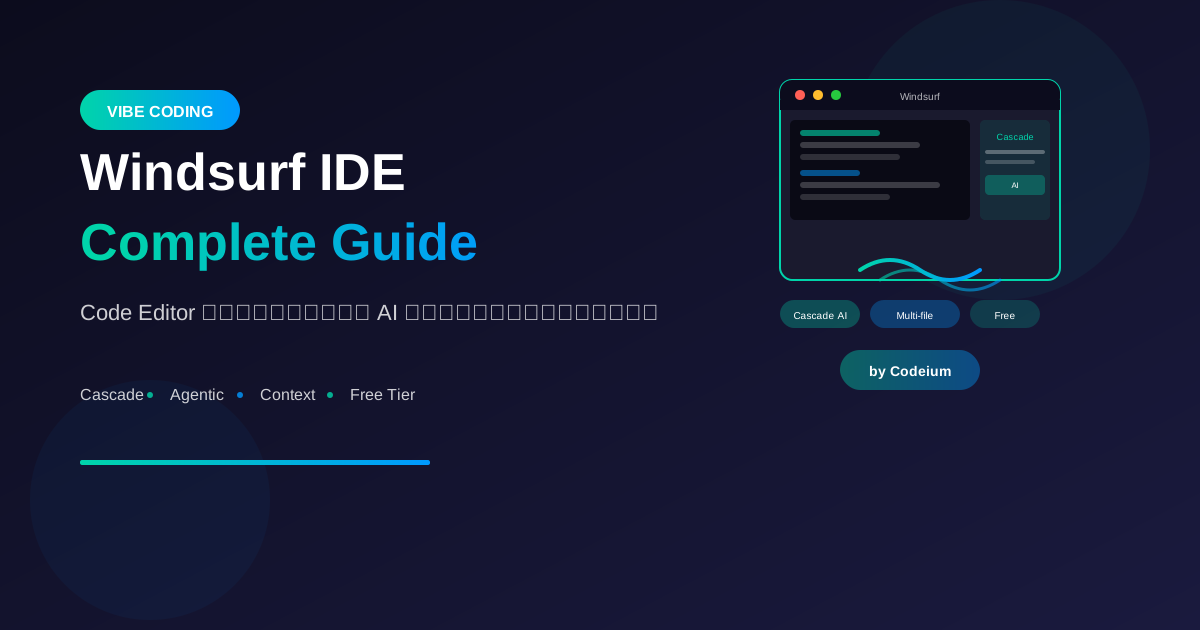
Windsurf คือ IDE ใหม่จาก Codeium ที่ออกแบบมาโดยมี AI เป็นแกนหลัก ไม่ใช่แค่ plugin เสริม แต่ AI ถูก integrate อยู่ในทุกส่วนของการทำงาน
Windsurf คืออะไร?
Overview
Windsurf = VSCode Fork + Native AI Integration

Key Features:
- Cascade: Agentic AI Assistant
- Deep codebase understanding
- Multi-file editing
- Terminal integration
- Context-aware suggestions
vs Other AI IDEs
Windsurf vs Cursor:
- Windsurf: Codeium's AI (free tier generous)
- Cursor: GPT-4/Claude (paid per usage)

Windsurf vs VSCode + Copilot:
- Windsurf: Native AI, deeper integration
- VSCode: Extension-based, limited scope

Windsurf vs Replit Agent:
- Windsurf: Local IDE, more control
- Replit: Cloud-based, instant deployment
Installation
Download & Setup
1. ไปที่ windsurf.ai
2. Download สำหรับ OS ของคุณ
3. Install และเปิด
4. Sign in / Create account
5. Import VSCode settings (optional)
Migration from VSCode
Windsurf รองรับ:
- VSCode extensions
- Settings.json
- Keybindings
- Themes

Import:
File → Import VS Code Settings
Cascade: AI Assistant
What is Cascade?
Cascade คือ AI Assistant ใน Windsurf

ความสามารถ:
- เข้าใจ codebase ทั้งหมด
- แก้ไขหลายไฟล์พร้อมกัน
- รัน terminal commands
- Search และ navigate code
- Debug และ explain code
Cascade Modes
Write Mode:
- สร้าง/แก้ไขโค้ด
- Generate functions
- Refactor code

Chat Mode:
- ถามคำถาม
- Explain code
- Get suggestions

Command Mode:
- รัน terminal commands
- File operations
- Git operations
Basic Usage
Opening Cascade
Keyboard Shortcuts:
- Cmd/Ctrl + L: Open Cascade panel
- Cmd/Ctrl + I: Inline completion
- Cmd/Ctrl + K: Quick action
Simple Prompts
ตัวอย่างการใช้:

"Create a React component for user login"
→ Cascade สร้าง component + styling

"Add error handling to this function"
→ แก้ไข code ที่ highlight อยู่

"Explain what this code does"
→ อธิบาย code ที่เลือก

"Write tests for this module"
→ สร้าง test file ใหม่
Multi-file Operations
Cascade สามารถ:

1. แก้ไขหลายไฟล์พร้อมกัน
   "Update all API calls to use the new endpoint"

2. Refactor across files
   "Rename User class to Customer everywhere"

3. Generate related files
   "Create a CRUD API with model, controller, and routes"
Advanced Features
Codebase Context
Cascade เข้าใจ:
- File structure
- Dependencies
- Custom types/interfaces
- Existing patterns in your code

ตัวอย่าง:
"Create a new service following the existing pattern"
→ ดู existing services แล้วสร้างตาม pattern เดิม
Terminal Integration
Cascade สามารถ:
- รัน commands
- ติดตั้ง dependencies
- Run scripts

ตัวอย่าง:
"Install and setup Tailwind CSS"
→ รัน npm install
→ สร้าง config files
→ Update imports
Image Understanding
Cascade รองรับ images:
- Drag & drop screenshot
- Paste from clipboard

Use cases:
- "Recreate this UI from screenshot"
- "Fix the bug shown in this error screenshot"
- "Implement this design mockup"
Practical Examples
Example 1: Create Full Feature
Prompt:
"Create a todo list feature with:
- Add/edit/delete todos
- Mark as complete
- Filter by status
- Persist to localStorage
Use React with TypeScript"

Cascade จะ:
1. สร้าง components
2. สร้าง types
3. สร้าง hooks
4. เชื่อมต่อ localStorage
5. Add styling
Example 2: Debug Issue
Prompt:
"This component keeps re-rendering unnecessarily.
Find and fix the performance issue."

Cascade จะ:
1. วิเคราะห์ component
2. หา cause ของ re-renders
3. เสนอ fix (useMemo, useCallback, etc.)
4. Apply changes
Example 3: Refactoring
Prompt:
"Refactor this file:
- Extract repeated logic to custom hooks
- Split large component into smaller ones
- Add proper TypeScript types"

Cascade จะ:
1. วิเคราะห์ code
2. สร้าง hooks ใหม่
3. แยก components
4. เพิ่ม types
5. Update imports
Example 4: API Integration
Prompt:
"Integrate with the Stripe API:
- Setup Stripe client
- Create payment intent endpoint
- Handle webhooks
- Add error handling"

Cascade จะ:
1. Install stripe package
2. สร้าง API routes
3. Setup webhook handler
4. Add types
5. Create utility functions
Best Practices
1. Be Specific
❌ "Make it better"
✅ "Improve performance by memoizing expensive calculations"

❌ "Fix the bug"
✅ "Fix the null pointer error when user.profile is undefined"

❌ "Add tests"
✅ "Add unit tests for the UserService class,
    covering login, logout, and password reset"
2. Provide Context
Good prompt structure:
1. What you're working on
2. What you want to achieve
3. Any constraints or requirements

Example:
"I'm building an e-commerce checkout flow.
Create a shipping address form that:
- Validates Thai postal codes
- Auto-fills province from postal code
- Uses our existing Form components"
3. Review Changes
Always review Cascade's changes:
- Check for correctness
- Verify it matches your style
- Test the functionality
- Don't blindly accept

Use "Explain changes" to understand what was modified
4. Iterative Refinement
Start broad, then refine:

1. "Create a user authentication system"
2. "Add password strength validation"
3. "Add rate limiting to login attempts"
4. "Add remember me functionality"
Settings & Configuration
Cascade Settings
Settings → Cascade:

- Model selection (if multiple available)
- Context window size
- Auto-suggestions frequency
- Privacy settings
Keybindings
Customize shortcuts:
File → Preferences → Keyboard Shortcuts

Common customizations:
- Cascade panel toggle
- Accept suggestion
- Reject suggestion
- Inline completion
Tips & Tricks
1. Use @ Mentions
@ mentions ช่วยให้ specific:

@file:auth.ts - Reference specific file
@function:login - Reference specific function
@type:User - Reference specific type
@docs:stripe - Reference documentation
2. Save Prompts
บันทึก prompts ที่ใช้บ่อย:
- Create components
- Add tests
- Code review checklist
- Documentation templates
3. Learn from Cascade
ใช้ Cascade เพื่อเรียนรู้:
- "Explain this regex pattern"
- "What's the best practice for this?"
- "How does this algorithm work?"
- "What are alternatives to this approach?"
Limitations
Things Cascade May Struggle With
- Very specialized/niche technologies
- Proprietary/internal APIs
- Recent features (training cutoff)
- Complex business logic without context
When to Code Manually
- Security-critical code (review carefully)
- Performance-critical algorithms
- Complex state management
- When you need to deeply understand the code
สรุป
Windsurf IDE Highlights:
- Cascade: Powerful AI assistant
- Multi-file editing: แก้ไขหลายไฟล์พร้อมกัน
- Deep context: เข้าใจ codebase ทั้งหมด
- Terminal integration: รัน commands อัตโนมัติ
- Free tier: ใช้ได้ฟรีจำนวนมาก
Best for:
- Rapid prototyping
- Learning new frameworks
- Refactoring large codebases
- Automating repetitive tasks
Remember: AI ช่วยได้มาก แต่คุณยังต้อง:
- Review code
- Understand changes
- Test thoroughly
- Own the final result
อ่านเพิ่มเติม:
เขียนโดย
AI Unlocked Team
สถาบันสอน AI และ Vibe Coding — เชียงใหม่และออนไลน์
AI Unlocked สอน AI และ Vibe Coding มากว่า 15 ปี ผู้เรียนกว่า 1,500 คน โฟกัสลงมือทำจริงด้วย Claude Code, n8n และ AI Agent
บทความในหัวข้อเดียวกัน
Vibe Coding คืออะไร? การเขียนโค้ดด้วย AI ยุคใหม่
ทำความเข้าใจ Vibe Coding วิธีการเขียนโค้ดรูปแบบใหม่ที่ใช้ AI เป็นผู้ช่วย พร้อมเรียนรู้หลักการ ข้อดี และวิธีเริ่มต้นสำหรับนักพัฒนาทุกระดับ
Vibe Coding สำหรับ SaaS MVP — ใน 2 สัปดาห์
สร้าง SaaS MVP ด้วย Vibe Coding ใน 14 วัน — Next.js, Supabase, Stripe, Vercel พร้อม 14-day plan ทีละ step เริ่มขายได้จริง!
MCP (Model Context Protocol) + Agent — สอน Setup
MCP Agent คืออะไร? สอน Setup Model Context Protocol ตั้งแต่ต้น — เชื่อม Claude, Cursor, Continue + สร้าง Custom Server สำหรับธุรกิจ เริ่มใช้วันนี้!