
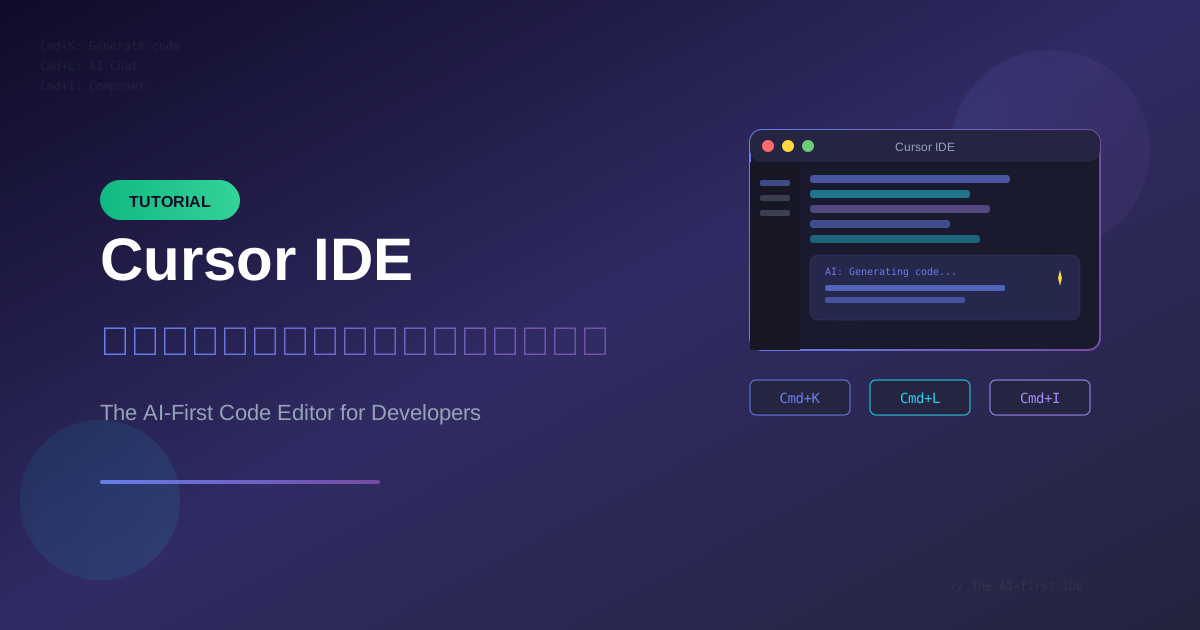
Cursor ได้รับการยกย่องว่าเป็น IDE ที่ดีที่สุดสำหรับ Vibe Coding ในปี 2025 บทความนี้จะพาคุณไปเรียนรู้ทุกอย่างเกี่ยวกับ Cursor ตั้งแต่การติดตั้งจนถึงเทคนิคขั้นสูง
Cursor คืออะไร?
Cursor คือ IDE (Integrated Development Environment) ที่สร้างขึ้นมาเพื่อ AI-assisted coding โดยเฉพาะ เป็น fork ของ VS Code ที่เพิ่ม AI capabilities เข้าไปอย่างลึกซึ้ง
ทำไมต้อง Cursor?
| Feature | VS Code + Copilot | Cursor |
|---|---|---|
| AI Chat | Sidebar only | Integrated everywhere |
| Multi-file Edit | ไม่รองรับ | Composer mode |
| Context Awareness | Limited | Codebase-aware |
| Inline Editing | Basic | Cmd+K magic |
| Speed | ปานกลาง | เร็วมาก |
การติดตั้ง Cursor
Step 1: Download
- ไปที่ cursor.sh
- Download สำหรับ OS ของคุณ (Mac/Windows/Linux)
- Install และเปิด application
Step 2: Sign Up
- สร้าง account ด้วย email หรือ GitHub
- เลือก plan (Free tier ก็เริ่มต้นได้)
Step 3: Import Settings (Optional)
ถ้าใช้ VS Code อยู่:
- เปิด Command Palette:
Cmd+Shift+P - พิมพ์ "Import VS Code Settings"
- Cursor จะ import extensions และ settings ให้
Step 4: Configure AI Model
- เปิด Settings:
Cmd+, - ไปที่ "AI" section
- เลือก model ที่ต้องการ:
- GPT-4o - Fast และ capable
- Claude 3.5 Sonnet - Best for code
- GPT-4 - Most capable
Keyboard Shortcuts ที่สำคัญ
AI Features
| Shortcut | Action | Description |
|---|---|---|
Cmd+K | Generate/Edit | สร้างหรือแก้ไขโค้ดด้วย AI |
Cmd+L | Chat | เปิด AI chat panel |
Cmd+Shift+L | Add to Chat | เพิ่ม selection ไป chat |
Cmd+I | Composer | Multi-file editing mode |
Tab | Accept | ยอมรับ AI suggestion |
Esc | Cancel | ยกเลิก AI operation |
Navigation
| Shortcut | Action |
|---|---|
Cmd+P | Quick file open |
Cmd+Shift+P | Command Palette |
Cmd+B | Toggle sidebar |
Cmd+J | Toggle terminal |
Cmd+\ | Split editor |
Editing
| Shortcut | Action |
|---|---|
Cmd+D | Select next occurrence |
Cmd+Shift+K | Delete line |
Alt+Up/Down | Move line |
Cmd+/ | Toggle comment |
Cmd+Shift+F | Search in project |
AI Features หลักของ Cursor
1. Cmd+K: Generate และ Edit
Cmd+K คือ feature ที่ทรงพลังที่สุดของ Cursor สามารถ:
Generate Code ใหม่
1. วางเคอร์เซอร์ที่ต้องการ
2. กด Cmd+K
3. พิมพ์: "Create a React component for user profile card"
4. Enter
ตัวอย่าง:
// หลังจากกด Cmd+K และพิมพ์ prompt

interface UserProfileProps {
  name: string;
  email: string;
  avatar: string;
  bio?: string;
}

export function UserProfileCard({ name, email, avatar, bio }: UserProfileProps) {
  return (
    <div className="rounded-lg border bg-card p-6 shadow-sm">
      <div className="flex items-center gap-4">
        <img
          src={avatar}
          alt={name}
          className="h-16 w-16 rounded-full object-cover"
        />
        <div>
          <h3 className="font-semibold text-lg">{name}</h3>
          <p className="text-muted-foreground text-sm">{email}</p>
        </div>
      </div>
      {bio && (
        <p className="mt-4 text-sm text-muted-foreground">{bio}</p>
      )}
    </div>
  );
}
Edit Code ที่มีอยู่
1. Select โค้ดที่ต้องการแก้
2. กด Cmd+K
3. พิมพ์: "Add loading state and error handling"
4. Enter
2. Cmd+L: AI Chat
Cmd+L เปิด chat panel สำหรับถาม-ตอบกับ AI:
ถามเกี่ยวกับ Code
"อธิบายว่า function นี้ทำอะไร"
"มี bug ตรงไหนบ้าง?"
"จะ optimize performance ได้อย่างไร?"
Reference Files
ใช้ @ เพื่ออ้างอิงไฟล์:
@file:src/api/users.ts
ช่วย refactor API calls ให้ใช้ React Query
Reference Documentation
@docs ช่วยอธิบายวิธีใช้ useEffect cleanup
3. Cmd+I: Composer Mode
Composer คือ feature สำหรับแก้ไขหลายไฟล์พร้อมกัน:
Prompt: "สร้างระบบ authentication ที่ประกอบด้วย:
1. Login page (app/login/page.tsx)
2. API route (app/api/auth/route.ts)
3. Auth context (lib/auth-context.tsx)
4. useAuth hook (lib/hooks/use-auth.ts)"
Cursor จะสร้างทุกไฟล์ให้พร้อมกัน!
4. Tab Completion
Cursor จะ suggest โค้ดขณะพิมพ์:
// พิมพ์:
async function fetchUsers(

// Cursor suggests:
async function fetchUsers(page: number = 1, limit: number = 10) {
  const response = await fetch(`/api/users?page=${page}&limit=${limit}`);
  if (!response.ok) throw new Error('Failed to fetch users');
  return response.json();
}
กด Tab เพื่อ accept หรือพิมพ์ต่อเพื่อ ignore
เทคนิคขั้นสูง
1. Context Management
ใช้ @ Symbols อย่างมีประสิทธิภาพ
@file:filename.ts     - อ้างอิงไฟล์เดียว
@folder:src/          - อ้างอิงทั้ง folder
@codebase             - อ้างอิงทั้ง project
@docs                 - ค้นหาจาก documentation
@web                  - ค้นหาจาก internet
ตัวอย่างการใช้งาน
@file:package.json @file:tsconfig.json
"ช่วย setup path aliases ให้ใช้ @/ แทน relative imports"
2. Custom Rules
สร้างไฟล์ .cursorrules ใน root ของ project:
# .cursorrules

## Code Style
- Use TypeScript for all new files
- Use functional components with hooks
- Prefer const over let
- Use async/await instead of .then()

## Naming Conventions
- Components: PascalCase
- Hooks: camelCase with "use" prefix
- Utilities: camelCase
- Constants: UPPER_SNAKE_CASE

## Architecture
- Put all API calls in /lib/api
- Put all hooks in /lib/hooks
- Use Zod for validation

## Project Context
This is a Next.js 14 app with:
- App Router
- Supabase for backend
- Tailwind CSS for styling
- shadcn/ui for components
3. Multi-file Workflows
Workflow: Add New Feature
Step 1: เปิด Composer (Cmd+I)

Step 2: พิมพ์ prompt ละเอียด:
"@codebase
สร้าง feature สำหรับ user notifications:

1. Database schema (add to supabase migrations)
2. API routes:
   - GET /api/notifications
   - POST /api/notifications/read
   - DELETE /api/notifications/:id
3. React Query hooks
4. NotificationList component
5. NotificationBell ใน navbar

ใช้ patterns จากที่มีอยู่แล้วใน project"

Step 3: Review และ accept changes
Workflow: Refactor Code
Step 1: Select code ที่ต้องการ refactor

Step 2: Cmd+K:
"Refactor นี้เป็น custom hook แยกออกไป
และ update component ให้ใช้ hook ใหม่"

Step 3: Review และ accept
4. Debugging with AI
"@file:error-log.txt
มี error นี้เกิดขึ้น ช่วยวิเคราะห์และแก้ไขให้หน่อย"
หรือ
Cmd+L แล้วพิมพ์:
"ทำไม function นี้ถึง return undefined บางครั้ง?
[paste code]"
Best Practices สำหรับ Cursor
1. เขียน Prompt ที่ดี
❌ ไม่ดี:
"สร้าง form"

✅ ดี:
"สร้าง login form ด้วย React Hook Form และ Zod:
- Email และ Password fields
- Validation: email ต้อง valid, password ต้องมีอย่างน้อย 8 ตัว
- Loading state ตอน submit
- Error messages ใต้แต่ละ field
- ใช้ shadcn/ui components"
2. Review ก่อน Accept
- อ่านโค้ดที่ AI สร้าง
- ตรวจสอบ imports
- มองหา hardcoded values
- ตรวจสอบ error handling
3. ใช้ Git เป็น Safety Net
# ก่อนใช้ Composer สร้างหลายไฟล์
git add .
git commit -m "WIP: before AI changes"

# ถ้าไม่พอใจ
git reset --hard HEAD
4. Iterate แทนที่จะ Perfect ครั้งเดียว
Round 1: "สร้าง basic structure"
Round 2: "เพิ่ม error handling"
Round 3: "เพิ่ม loading states"
Round 4: "เพิ่ม accessibility"
Common Issues และวิธีแก้
AI ไม่เข้าใจ Context
❌ ปัญหา: AI suggest โค้ดที่ไม่ fit กับ project

✅ วิธีแก้:
1. ใช้ @codebase ใน prompt
2. สร้าง .cursorrules
3. Reference ไฟล์ที่เกี่ยวข้อง
Generation ช้า
❌ ปัญหา: AI ใช้เวลานานในการ generate

✅ วิธีแก้:
1. ใช้ GPT-4o แทน GPT-4
2. ลด context ที่ส่งไป
3. แบ่ง prompt เป็นส่วนเล็กๆ
Code ไม่ Compile
❌ ปัญหา: AI generate code ที่มี errors

✅ วิธีแก้:
1. ให้ AI ดู error: "Fix TypeScript errors นี้: [paste errors]"
2. Reference types file: @file:types.ts
3. ใช้ /fix command ใน chat
Cursor Plans และราคา
| Plan | ราคา | Features |
|---|---|---|
| Free | $0 | 2,000 completions, 50 slow requests |
| Pro | $20/เดือน | Unlimited completions, 500 fast requests |
| Business | $40/เดือน | Team features, Admin controls, SSO |
แนะนำ
- เริ่มต้น: Free tier เพื่อลองใช้
- Individual dev: Pro เมื่อใช้เป็นประจำ
- Teams: Business เมื่อต้องการ collaboration
สรุป
Cursor คือ IDE ที่ดีที่สุดสำหรับ Vibe Coding ด้วย features:
- Cmd+K: Generate และ Edit โค้ดได้ทันที
- Cmd+L: Chat กับ AI เกี่ยวกับโค้ด
- Cmd+I: Multi-file editing ด้วย Composer
- Tab Completion: Intelligent suggestions
Key takeaways:
- เขียน prompt ที่ชัดเจนและละเอียด
- ใช้ @ symbols เพื่อให้ context
- สร้าง .cursorrules สำหรับ project
- Review โค้ดก่อน accept เสมอ
- Iterate หลายรอบแทนที่จะ perfect ครั้งเดียว
พร้อมใช้ Cursor แล้วหรือยัง?
Download Cursor ได้ที่ cursor.sh และเริ่มต้น Vibe Coding วันนี้!
อ่านเพิ่มเติม:
- GitHub Copilot เทคนิคการใช้งาน
- Best Practices สำหรับ Vibe Coding
- Prompt Engineering สำหรับ Developers
คำถามที่พบบ่อย (FAQ)
Q: Cursor คืออะไร ต่างจาก VS Code ยังไง? Cursor เป็น IDE ที่แยกมาจาก VS Code เพื่องานเขียนโค้ดกับ AI โดยเฉพาะ มีแชทใช้ได้ทั่ว editor, Composer แก้หลายไฟล์, รู้บริบททั้งโปรเจกต์ และ Cmd+K แก้โค้ดตรงจุด ซึ่ง VS Code คู่ Copilot จำกัดกว่าทั้งแชทและ context
Q: Cursor ใช้ฟรีได้ไหม ราคาเท่าไหร่? แผน Free 0 ดอลลาร์ ได้ 2,000 completions และ 50 slow requests แผน Pro 20 ดอลลาร์ต่อเดือน ได้ completions ไม่จำกัดกับ 500 fast requests แผน Business 40 ดอลลาร์ต่อเดือน มีฟีเจอร์ทีมและ SSO เริ่มจาก Free แล้วค่อย Pro เมื่อใช้ประจำ
Q: ติดตั้ง Cursor ยังไง? ดาวน์โหลดที่ cursor.sh สำหรับ Mac, Windows หรือ Linux แล้วสมัครด้วยอีเมลหรือ GitHub ถ้าใช้ VS Code อยู่ เปิด Command Palette แล้วพิมพ์ Import VS Code Settings เพื่อนำส่วนขยายและการตั้งค่ามาได้
Q: Shortcut สำคัญของ Cursor มีอะไรบ้าง? Cmd+K สร้างหรือแก้โค้ด, Cmd+L เปิดแชท, Cmd+I เปิด Composer หลายไฟล์, Tab รับคำแนะนำ, Esc ยกเลิก บน Windows ใช้ Ctrl แทน Cmd
Q: ไฟล์ .cursorrules ใช้ทำอะไร? วางที่ root ของโปรเจกต์เพื่อบอกสไตล์โค้ด, ชื่อไฟล์, โครงโปรเจกต์ และสแต็กที่ใช้ ถ้า AI แนะนำโค้ดไม่เข้ากับงาน ให้ใส่ @codebase ใน prompt และสร้างไฟล์นี้
Q: AI สร้างช้าหรือโค้ดคอมไพล์ไม่ผ่านแก้ยังไง? ถ้าช้าให้เปลี่ยนเป็น GPT-4o แทน GPT-4 ลด context หรือแบ่ง prompt เป็นชิ้นเล็ก ถ้าคอมไพล์ไม่ผ่านให้วาง error ให้ AI แก้ อ้างไฟล์ types หรือใช้คำสั่ง /fix ในแชท
เขียนโดย
AI Unlocked Team
สถาบันสอน AI และ Vibe Coding — เชียงใหม่และออนไลน์
AI Unlocked สอน AI และ Vibe Coding มากว่า 15 ปี ผู้เรียนกว่า 1,500 คน โฟกัสลงมือทำจริงด้วย Claude Code, n8n และ AI Agent
บทความในหัวข้อเดียวกัน
Vibe Coding คืออะไร? การเขียนโค้ดด้วย AI ยุคใหม่
ทำความเข้าใจ Vibe Coding วิธีการเขียนโค้ดรูปแบบใหม่ที่ใช้ AI เป็นผู้ช่วย พร้อมเรียนรู้หลักการ ข้อดี และวิธีเริ่มต้นสำหรับนักพัฒนาทุกระดับ
Vibe Coding สำหรับ SaaS MVP — ใน 2 สัปดาห์
สร้าง SaaS MVP ด้วย Vibe Coding ใน 14 วัน — Next.js, Supabase, Stripe, Vercel พร้อม 14-day plan ทีละ step เริ่มขายได้จริง!
MCP (Model Context Protocol) + Agent — สอน Setup
MCP Agent คืออะไร? สอน Setup Model Context Protocol ตั้งแต่ต้น — เชื่อม Claude, Cursor, Continue + สร้าง Custom Server สำหรับธุรกิจ เริ่มใช้วันนี้!