
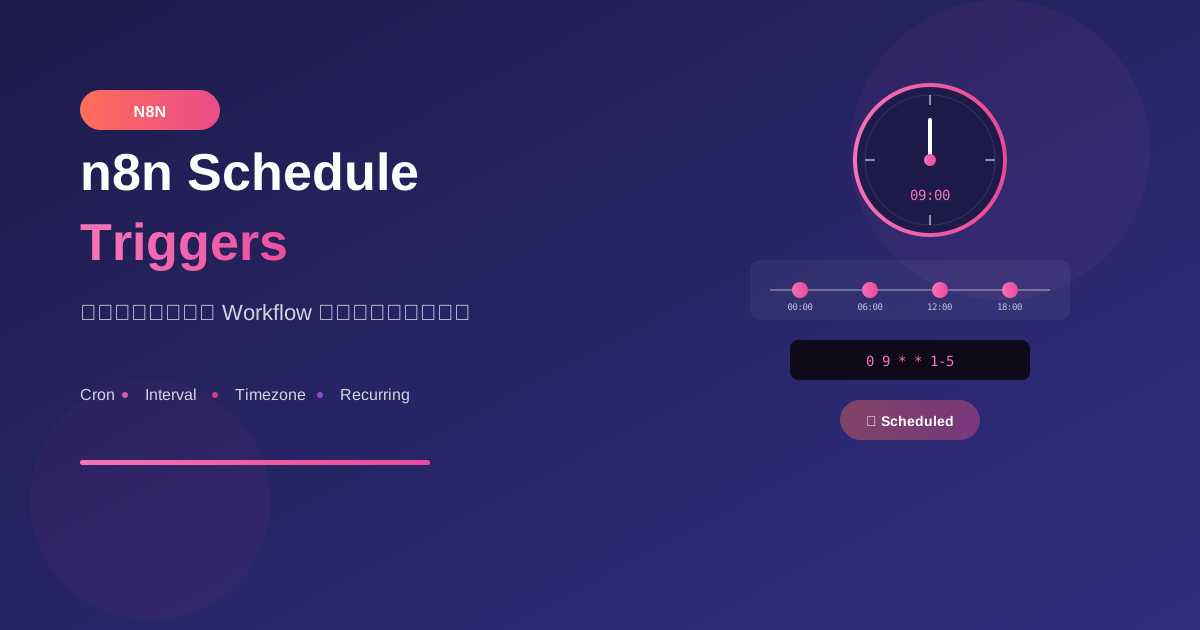
Schedule Trigger ช่วยให้ workflow ทำงานอัตโนมัติตามเวลาที่กำหนด ไม่ว่าจะเป็นทุกนาที ทุกวัน หรือตาม pattern ที่ซับซ้อน
Schedule Trigger Basics
ประเภทของ Schedule
1. Interval
   - ทุก X นาที/ชั่วโมง/วัน

2. Cron Expression
   - Pattern ที่ซับซ้อน
   - เช่น "ทุกวันจันทร์-ศุกร์ 9:00"

3. Specific Times
   - เวลาเฉพาะเจาะจง
Basic Interval Settings
Mode: Interval

Options:
- Every: 5 minutes
- Every: 1 hour
- Every: 1 day
- Every: 1 week
Cron Expression Guide
Cron Format
* * * * *
│ │ │ │ │
│ │ │ │ └── Day of Week (0-6, Sun-Sat)
│ │ │ └──── Month (1-12)
│ │ └────── Day of Month (1-31)
│ └──────── Hour (0-23)
└────────── Minute (0-59)
Common Cron Patterns
ทุกนาที:
* * * * *

ทุก 5 นาที:
*/5 * * * *

ทุก 30 นาที:
*/30 * * * *

ทุกชั่วโมง (นาทีที่ 0):
0 * * * *

ทุกวัน 9:00:
0 9 * * *

ทุกวัน 9:00 และ 18:00:
0 9,18 * * *

ทุกวันจันทร์-ศุกร์ 9:00:
0 9 * * 1-5

ทุกวันแรกของเดือน 00:00:
0 0 1 * *

ทุกวันอาทิตย์ 23:00:
0 23 * * 0
Advanced Cron
ทุก 15 นาที ระหว่าง 9:00-17:00:
*/15 9-17 * * *

ทุกชั่วโมง เฉพาะวันทำงาน:
0 * * * 1-5

วันที่ 1 และ 15 ของเดือน 10:00:
0 10 1,15 * *

ทุก 2 ชั่วโมง:
0 */2 * * *

3 ครั้งต่อวัน (8:00, 12:00, 18:00):
0 8,12,18 * * *
Practical Examples
Example 1: Daily Report
Workflow: Daily Sales Report

Schedule Trigger:
- Mode: Cron
- Expression: 0 8 * * 1-5
- Timezone: Asia/Bangkok

Meaning: ทุกวันจันทร์-ศุกร์ 8:00 น.

Flow:
1. Schedule Trigger (8:00)
2. Query Sales Data (Yesterday)
3. Generate Report
4. Send Email to Team
Example 2: Hourly Sync
Workflow: CRM Data Sync

Schedule Trigger:
- Mode: Cron
- Expression: 0 * * * *
- Timezone: Asia/Bangkok

Meaning: ทุกชั่วโมง (นาทีที่ 0)

Flow:
1. Schedule Trigger
2. Get Updated Records (last hour)
3. Transform Data
4. Update Local Database
5. Log Sync Status
Example 3: Weekly Cleanup
Workflow: Database Cleanup

Schedule Trigger:
- Mode: Cron
- Expression: 0 2 * * 0
- Timezone: Asia/Bangkok

Meaning: ทุกวันอาทิตย์ 02:00 น.

Flow:
1. Schedule Trigger
2. Delete Old Logs (> 30 days)
3. Archive Completed Orders
4. Optimize Tables
5. Send Summary Report
Example 4: Business Hours Only
Workflow: Customer Follow-up

Schedule Trigger:
- Mode: Cron
- Expression: */30 9-17 * * 1-5
- Timezone: Asia/Bangkok

Meaning: ทุก 30 นาที, 9:00-17:00, จันทร์-ศุกร์

Flow:
1. Schedule Trigger
2. Check Pending Follow-ups
3. Assign to Available Agents
4. Send Notifications
Timezone Configuration
Setting Timezone
n8n Schedule Trigger:
- Timezone: Asia/Bangkok

Important:
- Default คือ UTC
- เลือก timezone ให้ตรงกับ business location
- Workflow จะ run ตาม timezone ที่ตั้ง
Common Timezones
Thailand: Asia/Bangkok (UTC+7)
Singapore: Asia/Singapore (UTC+8)
Japan: Asia/Tokyo (UTC+9)
US East: America/New_York (UTC-5/-4)
US West: America/Los_Angeles (UTC-8/-7)
UK: Europe/London (UTC+0/+1)
Handling Daylight Saving
⚠️ ระวัง:
- บาง timezone มี DST
- เวลาอาจ shift 1 ชั่วโมง
- Thailand (Asia/Bangkok) ไม่มี DST
Multiple Schedules
Using Multiple Triggers
Workflow: Multi-schedule Report

Option 1: Multiple Schedule Triggers
- Schedule 1: 0 9 * * * (Daily 9:00)
- Schedule 2: 0 18 * * * (Daily 18:00)

Both triggers connect to same workflow
Conditional Logic by Time
// Code Node - Check Time
const hour = $now.hour;
const dayOfWeek = $now.weekday; // 1=Mon, 7=Sun

let reportType;

if (hour < 12) {
  reportType = 'morning';
} else {
  reportType = 'evening';
}

if (dayOfWeek === 1) {
  reportType = 'weekly_' + reportType;
}

return { reportType };
Error Handling for Schedules
Missed Executions
n8n Behavior:
- ถ้า n8n ปิดอยู่ → schedule ที่ miss จะไม่ run
- เมื่อ restart → run ตาม schedule ถัดไป

Solution:
- Check last execution time
- Run catch-up if needed
Catch-up Logic
// Code Node - Check for missed runs
const lastRun = await getLastRunTime(); // from storage
const now = new Date();
const hoursSinceLastRun = (now - lastRun) / (1000 * 60 * 60);

if (hoursSinceLastRun > 2) { // Expected every hour
  return {
    missedRuns: Math.floor(hoursSinceLastRun),
    shouldCatchUp: true
  };
}

return { missedRuns: 0, shouldCatchUp: false };
Prevent Overlapping
Problem:
- Workflow ยังทำงานไม่เสร็จ
- Schedule trigger ใหม่มาถึง

Solution 1: Execution Settings
- "Do not run if previous not finished"

Solution 2: Lock Mechanism
- Check lock before running
- Release lock after complete
Monitoring Schedules
Execution History
ตรวจสอบใน n8n:
1. ไปที่ Workflows
2. เลือก workflow
3. ดู Executions tab
4. Filter by: "Scheduled"

ข้อมูลที่ดู:
- Start time
- Duration
- Status (Success/Error)
- Output data
Alerting on Failure
Workflow Pattern:

1. Schedule Trigger
2. Main Process (try)
3. On Error → Error Workflow
   - Send Slack alert
   - Log to monitoring system
Best Practices
1. Avoid Peak Times
❌ ไม่ดี: 0 0 * * * (ทุกเที่ยงคืน)
→ Server load สูง

✅ ดี: 0 3 * * * (ตี 3)
→ Low traffic time

หรือกระจาย:
- Team A: 0 2 * * *
- Team B: 0 3 * * *
- Team C: 0 4 * * *
2. Add Buffer Time
❌ ไม่ดี: ทุก 1 นาที
→ Workflow อาจทำงานไม่เสร็จ

✅ ดี: ทุก 5-15 นาที
→ มี buffer ให้ทำงานเสร็จ
3. Log Execution Start/End
Pattern:
1. Log "Workflow started" + timestamp
2. Process data
3. Log "Workflow completed" + timestamp + stats

→ ช่วย debug และ monitor
4. Use Descriptive Names
❌ ไม่ดี: "Schedule 1"
✅ ดี: "Daily Sales Report - 8AM"
✅ ดี: "Hourly CRM Sync"
Common Patterns
Pattern 1: Batch Processing
Workflow: Process Large Dataset

Schedule: 0 2 * * * (Daily 2:00 AM)

Flow:
1. Get pending items
2. Split in batches (100 items)
3. Process each batch
4. Update status
5. Report completion
Pattern 2: Polling with Backoff
Workflow: Check External API

Schedule: */5 * * * * (Every 5 minutes)

Flow:
1. Check if data available
2. IF available:
   - Process data
   - Reset retry counter
3. IF not available:
   - Increment retry counter
   - If retries > 3, alert
Pattern 3: Scheduled Maintenance
Workflow: System Maintenance

Schedule: 0 4 * * 0 (Sunday 4:00 AM)

Flow:
1. Backup database
2. Clear temp files
3. Rotate logs
4. Update cache
5. Health check
6. Send maintenance report
สรุป
Schedule Trigger Essentials:
- Interval: สำหรับ pattern ง่ายๆ
- Cron: สำหรับ pattern ซับซ้อน
- Timezone: ตั้งให้ถูกต้อง
- Error Handling: รองรับ failures
- Monitoring: ติดตาม executions
Common Cron Patterns:
0 9 * * 1-5- วันทำงาน 9:00*/15 * * * *- ทุก 15 นาที0 0 1 * *- วันแรกของเดือน0 */2 * * *- ทุก 2 ชั่วโมง
Best Practices:
- หลีกเลี่ยง peak times
- เพิ่ม buffer time
- Log executions
- ตั้งชื่อให้ชัดเจน
อ่านเพิ่มเติม:
เขียนโดย
AI Unlocked Team
สถาบันสอน AI และ Vibe Coding — เชียงใหม่และออนไลน์
AI Unlocked สอน AI และ Vibe Coding มากว่า 15 ปี ผู้เรียนกว่า 1,500 คน โฟกัสลงมือทำจริงด้วย Claude Code, n8n และ AI Agent
บทความในหัวข้อเดียวกัน
สร้าง AI Agent — Complete Guide ภาษาไทย 2026
เรียนรู้สร้าง AI Agent ตั้งแต่ศูนย์ ครอบคลุม Claude Agent SDK, OpenAI Agents, LangGraph, n8n พร้อม Use Case ธุรกิจไทย — เริ่มต้นได้วันนี้
AI Agent + Voice — สอนสร้าง Voice Assistant ภาษาไทย
สอนสร้าง AI Voice Agent ภาษาไทยตั้งแต่ STT → LLM → TTS พร้อม tutorial Python และ use case จริง — เริ่มต้นได้วันนี้ที่ aiunlock.co

AI Agent สำหรับ E-commerce — Auto Reply + Order Tracking
AI Agent ecommerce ตอบลูกค้า 24/7 บน Shopee, Lazada, Line, FB — ครอบคลุม order tracking, stock check, escalation พร้อม workflow จริง เริ่มต้นได้เลย