

หลังจากติดตั้ง n8n เรียบร้อยแล้ว ขั้นตอนต่อไปคือการสร้าง Workflow แรกของคุณ บทความนี้จะพาคุณทำความเข้าใจพื้นฐานของ n8n และสร้าง Workflow จริงที่ใช้งานได้ทันที
ยังไม่ได้ติดตั้ง? อ่านได้ที่: วิธีติดตั้ง n8n
ทำความเข้าใจ Interface ของ n8n
หน้าหลัก (Canvas)
เมื่อเปิด n8n คุณจะเห็นพื้นที่ว่างๆ ที่เรียกว่า Canvas - นี่คือที่ที่คุณจะวาง Nodes และสร้าง Workflow
ส่วนประกอบหลัก
{
  "interface_components": {
    "canvas": "พื้นที่วาง Nodes",
    "node_panel": "เมนูเลือก Nodes (กด + หรือ Tab)",
    "execution_button": "ปุ่ม Execute Workflow",
    "save_button": "ปุ่มบันทึก Workflow",
    "workflow_settings": "ตั้งค่า Workflow"
  }
}
ประเภทของ Nodes
1. Trigger Nodes (เริ่มต้น Workflow)
| Node | การใช้งาน |
|---|---|
| Manual Trigger | เริ่มด้วยมือ (สำหรับทดสอบ) |
| Schedule Trigger | ตั้งเวลา (Cron) |
| Webhook | รับข้อมูลจากภายนอก |
| On App Event | เมื่อเกิด Event ใน App |
2. Action Nodes (ทำงาน)
| Node | การใช้งาน |
|---|---|
| HTTP Request | เรียก API |
| Send Email | ส่งอีเมล |
| Google Sheets | อ่าน/เขียน Spreadsheet |
| Slack/Discord | ส่งข้อความ |
3. Logic Nodes (ควบคุม Flow)
| Node | การใช้งาน |
|---|---|
| IF | เงื่อนไข True/False |
| Switch | หลายเงื่อนไข |
| Merge | รวม Data |
| Split In Batches | แบ่ง Data |
Workflow 1: Hello World
เริ่มจาก Workflow ง่ายที่สุดเพื่อทำความเข้าใจพื้นฐาน
ขั้นตอน
-
เพิ่ม Manual Trigger
- คลิก + หรือกด Tab
- ค้นหา "Manual"
- เลือก "Manual Trigger"
-
เพิ่ม Set Node
- คลิก + ที่ขอบ Node
- ค้นหา "Set"
- เพิ่ม Field:
message=Hello World!
-
Execute
- คลิกปุ่ม "Execute Workflow"
- ดูผลลัพธ์ที่ Output
JSON Workflow
{
  "name": "Hello World",
  "nodes": [
    {
      "parameters": {},
      "name": "Manual Trigger",
      "type": "n8n-nodes-base.manualTrigger",
      "typeVersion": 1,
      "position": [250, 300]
    },
    {
      "parameters": {
        "values": {
          "string": [
            {
              "name": "message",
              "value": "Hello World!"
            }
          ]
        }
      },
      "name": "Set Message",
      "type": "n8n-nodes-base.set",
      "typeVersion": 1,
      "position": [450, 300]
    }
  ],
  "connections": {
    "Manual Trigger": {
      "main": [[{"node": "Set Message", "type": "main", "index": 0}]]
    }
  }
}
Workflow 2: ดึงข้อมูลจาก API
สถานการณ์
ดึงข้อมูล Random Quote จาก API และแสดงผล
ขั้นตอน
-
เพิ่ม Manual Trigger
-
เพิ่ม HTTP Request Node
- Method: GET
- URL:
https://api.quotable.io/random
-
เพิ่ม Set Node (Optional - จัดรูปแบบข้อมูล)
quote={{ $json.content }}author={{ $json.author }}
JSON Workflow
{
  "name": "Random Quote",
  "nodes": [
    {
      "parameters": {},
      "name": "Manual Trigger",
      "type": "n8n-nodes-base.manualTrigger",
      "typeVersion": 1,
      "position": [250, 300]
    },
    {
      "parameters": {
        "url": "https://api.quotable.io/random",
        "options": {}
      },
      "name": "Get Quote",
      "type": "n8n-nodes-base.httpRequest",
      "typeVersion": 3,
      "position": [450, 300]
    },
    {
      "parameters": {
        "values": {
          "string": [
            {
              "name": "quote",
              "value": "={{ $json.content }}"
            },
            {
              "name": "author",
              "value": "={{ $json.author }}"
            }
          ]
        }
      },
      "name": "Format Output",
      "type": "n8n-nodes-base.set",
      "typeVersion": 1,
      "position": [650, 300]
    }
  ],
  "connections": {
    "Manual Trigger": {
      "main": [[{"node": "Get Quote", "type": "main", "index": 0}]]
    },
    "Get Quote": {
      "main": [[{"node": "Format Output", "type": "main", "index": 0}]]
    }
  }
}
Workflow 3: Schedule + Slack Notification
สถานการณ์
ส่ง Daily Quote ไปยัง Slack ทุกเช้า 9:00 น.
ขั้นตอน
-
เพิ่ม Schedule Trigger
- Trigger at Hour: 9
- Timezone: Asia/Bangkok
-
เพิ่ม HTTP Request Node
- URL:
https://api.quotable.io/random
- URL:
-
เพิ่ม Slack Node
- Credentials: ตั้งค่า Slack OAuth
- Channel: #general
- Message:
Quote of the Day: "{{ $json.content }}" - {{ $json.author }}
การตั้งค่า Slack Credentials
{
  "slack_setup": {
    "step_1": "ไปที่ api.slack.com/apps",
    "step_2": "สร้าง New App",
    "step_3": "เพิ่ม OAuth Scopes: chat:write, channels:read",
    "step_4": "Install to Workspace",
    "step_5": "คัดลอก Bot User OAuth Token",
    "step_6": "ใส่ใน n8n Credentials"
  }
}
JSON Workflow
{
  "name": "Daily Quote to Slack",
  "nodes": [
    {
      "parameters": {
        "rule": {
          "interval": [
            {
              "field": "hours",
              "hoursInterval": 24,
              "triggerAtHour": 9
            }
          ]
        }
      },
      "name": "Schedule",
      "type": "n8n-nodes-base.scheduleTrigger",
      "typeVersion": 1,
      "position": [250, 300]
    },
    {
      "parameters": {
        "url": "https://api.quotable.io/random"
      },
      "name": "Get Quote",
      "type": "n8n-nodes-base.httpRequest",
      "typeVersion": 3,
      "position": [450, 300]
    },
    {
      "parameters": {
        "channel": "#general",
        "text": "=Quote of the Day:\n\n\"{{ $json.content }}\"\n\n- {{ $json.author }}"
      },
      "name": "Slack",
      "type": "n8n-nodes-base.slack",
      "typeVersion": 1,
      "position": [650, 300]
    }
  ],
  "connections": {
    "Schedule": {
      "main": [[{"node": "Get Quote", "type": "main", "index": 0}]]
    },
    "Get Quote": {
      "main": [[{"node": "Slack", "type": "main", "index": 0}]]
    }
  }
}
Workflow 4: IF Condition
สถานการณ์
ตรวจสอบราคา Bitcoin และแจ้งเตือนถ้าราคาสูงกว่าที่กำหนด
ขั้นตอน
-
Schedule Trigger (ทุก 1 ชั่วโมง)
-
HTTP Request - ดึงราคา BTC
- URL:
https://api.coindesk.com/v1/bpi/currentprice.json
- URL:
-
IF Node - ตรวจสอบเงื่อนไข
- Value 1:
{{ $json.bpi.USD.rate_float }} - Operation:
Larger - Value 2:
50000
- Value 1:
-
Slack (True) - ราคาสูง → แจ้งเตือน
-
NoOp (False) - ราคาต่ำ → ไม่ทำอะไร
JSON Workflow
{
  "name": "Bitcoin Price Alert",
  "nodes": [
    {
      "parameters": {
        "rule": {
          "interval": [{"field": "hours", "hoursInterval": 1}]
        }
      },
      "name": "Every Hour",
      "type": "n8n-nodes-base.scheduleTrigger",
      "position": [250, 300]
    },
    {
      "parameters": {
        "url": "https://api.coindesk.com/v1/bpi/currentprice.json"
      },
      "name": "Get BTC Price",
      "type": "n8n-nodes-base.httpRequest",
      "position": [450, 300]
    },
    {
      "parameters": {
        "conditions": {
          "number": [
            {
              "value1": "={{ $json.bpi.USD.rate_float }}",
              "operation": "larger",
              "value2": 50000
            }
          ]
        }
      },
      "name": "Price Check",
      "type": "n8n-nodes-base.if",
      "position": [650, 300]
    },
    {
      "parameters": {
        "channel": "#alerts",
        "text": "=BTC Price Alert! Current: ${{ $json.bpi.USD.rate }}"
      },
      "name": "Alert Slack",
      "type": "n8n-nodes-base.slack",
      "position": [850, 200]
    },
    {
      "parameters": {},
      "name": "Do Nothing",
      "type": "n8n-nodes-base.noOp",
      "position": [850, 400]
    }
  ],
  "connections": {
    "Every Hour": {
      "main": [[{"node": "Get BTC Price"}]]
    },
    "Get BTC Price": {
      "main": [[{"node": "Price Check"}]]
    },
    "Price Check": {
      "main": [
        [{"node": "Alert Slack"}],
        [{"node": "Do Nothing"}]
      ]
    }
  }
}
Workflow 5: Form to Google Sheets
สถานการณ์
รับข้อมูลจาก Webhook และบันทึกลง Google Sheets
ขั้นตอน
-
Webhook Node
- HTTP Method: POST
- Path:
/form-submission
-
Google Sheets Node
- Operation: Append
- Sheet: เลือก Sheet ที่ต้องการ
- Mapping: Map fields จาก Webhook
การตั้งค่า Google Sheets Credentials
{
  "google_sheets_setup": {
    "step_1": "ไปที่ console.cloud.google.com",
    "step_2": "สร้าง Project ใหม่",
    "step_3": "Enable Google Sheets API",
    "step_4": "สร้าง OAuth 2.0 Client ID",
    "step_5": "ดาวน์โหลด JSON credentials",
    "step_6": "ใส่ใน n8n และ Authorize"
  }
}
ทดสอบ Webhook
curl -X POST \
  http://localhost:5678/webhook/form-submission \
  -H "Content-Type: application/json" \
  -d '{
    "name": "John Doe",
    "email": "[email protected]",
    "message": "Hello from API!"
  }'
Expression Syntax
n8n ใช้ JavaScript Expressions สำหรับ Dynamic Data
ตัวอย่าง Expressions
// เข้าถึงข้อมูลจาก Node ก่อนหน้า
{{ $json.fieldName }}

// เข้าถึงข้อมูลจาก Node ที่ระบุ
{{ $node["Node Name"].json.fieldName }}

// JavaScript Functions
{{ $json.name.toUpperCase() }}
{{ $json.price * 1.07 }}
{{ new Date().toISOString() }}

// Conditional
{{ $json.status === "active" ? "Yes" : "No" }}

// Array Operations
{{ $json.items.length }}
{{ $json.items.map(i => i.name).join(", ") }}
Built-in Variables
| Variable | Description |
|---|---|
$json | ข้อมูล JSON จาก Input |
$binary | ข้อมูล Binary (ไฟล์) |
$node | เข้าถึง Node อื่นๆ |
$workflow | ข้อมูล Workflow |
$execution | ข้อมูล Execution ปัจจุบัน |
$env | Environment Variables |
Best Practices สำหรับผู้เริ่มต้น
1. ตั้งชื่อ Node ให้สื่อความหมาย
# ดี
"Fetch Customer Data"
"Send Welcome Email"
"Check Payment Status"

# ไม่ดี
"HTTP Request"
"Email"
"IF"
2. ใช้ Sticky Notes
เพิ่ม Sticky Notes เพื่ออธิบาย Workflow
3. Test ทุก Node
คลิก "Execute Node" เพื่อทดสอบทีละ Node
4. Enable Error Workflow
ตั้งค่า Error Workflow เพื่อรับแจ้งเตือนเมื่อเกิดข้อผิดพลาด
อ่านเพิ่มเติม: จัดการ Error ใน n8n
5. ใช้ Version Control
Export Workflow เป็น JSON และเก็บใน Git
# Export
n8n export:workflow --all --output=./workflows/

# Import
n8n import:workflow --input=./workflows/workflow.json
การ Import Workflow
วิธีที่ 1: Copy JSON
- Copy JSON Workflow จากบทความ
- ใน n8n ไปที่ Workflow ใหม่
- กด Ctrl/Cmd + V
วิธีที่ 2: Import File
- บันทึก JSON เป็นไฟล์
.json - ใน n8n คลิก Menu → Import from File
Debugging Tips
ดู Execution Data
- เปิด Workflow
- คลิกที่ Node ที่ต้องการตรวจสอบ
- ดู Input/Output ในแท็บด้านขวา
ใช้ Console Log
// ใน Code Node
console.log($json);
return $json;
Pinning Data
Pin ข้อมูลที่ Node เพื่อใช้ในการทดสอบ
ต่อยอดการเรียนรู้
เมื่อคุณเข้าใจพื้นฐานแล้ว สามารถศึกษาต่อได้ที่:
- Webhook: Webhook Triggers ใน n8n
- Google Sheets: Automate Google Sheets
- AI Integration: เชื่อมต่อ n8n กับ AI
- Telegram Bot: สร้าง Telegram Bot
หากต้องการเรียนรู้เรื่อง AI เพิ่มเติม:
สรุป
ในบทความนี้คุณได้เรียนรู้:
- Interface และส่วนประกอบของ n8n
- ประเภทของ Nodes (Trigger, Action, Logic)
- การสร้าง 5 Workflows พื้นฐาน
- Expression Syntax
- Best Practices สำหรับผู้เริ่มต้น
เคล็ดลับ: ทดลองสร้าง Workflow ด้วยตัวเอง วิธีที่ดีที่สุดในการเรียนรู้คือการลงมือทำ!
พร้อมสร้าง Workflow ที่ซับซ้อนมากขึ้นแล้วหรือยัง?
อ่านต่อที่ 5 Advanced Workflows ที่จะเปลี่ยนการทำงานของคุณ หรือติดตามบทความใหม่ๆ ที่ AI Unlocked
คำถามที่พบบ่อย (FAQ)
Q: ต้องมีพื้นฐานอะไรก่อนสร้าง Workflow ใน n8n? บทความนี้ต่อจากขั้นตอนติดตั้งแล้ว ทำงานบน Canvas ด้วยการลาก Node ไม่ต้องเขียนโปรแกรมสำหรับ workflow พื้นฐาน กด + หรือ Tab เพื่อเลือก Node แล้วกด Execute Workflow เพื่อดูผล
Q: Workflow แรกควรเริ่มจากอะไร?
เริ่มที่ Hello World: ใส่ Manual Trigger ต่อด้วย Set Node ให้ฟิลด์ message เป็น Hello World! แล้วกด Execute เพื่อดู Output นี่คือวิธีทำความเข้าใจพื้นฐานก่อนต่อ API หรือตารางจริง
Q: บทความมีตัวอย่าง Workflow อะไรบ้าง? มี 5 อัน ได้แก่ Hello World, ดึง Random Quote จาก API, ส่ง Daily Quote เข้า Slack ทุกเช้า 9:00 น. ตามเวลา Asia/Bangkok, ใช้ IF เช็กราคา Bitcoin แล้วแจ้งเตือน และรับข้อมูลจาก Webhook แล้วบันทึกลง Google Sheets
Q: Expression ใน n8n เขียนยังไง?
ใช้ JavaScript Expression สำหรับข้อมูลไดนามิก ตัวแปรที่ใช้บ่อยคือ $json สำหรับอินพุต, $node เพื่ออ้าง Node อื่น, $workflow, $execution และ $env สำหรับ environment variables
Q: Import Workflow จากบทความยังไง?
คัดลอก JSON แล้วเปิด Workflow ใหม่ใน n8n กด Ctrl/Cmd + V ได้เลย หรือบันทึกเป็นไฟล์ .json แล้วใช้เมนู Import from File นอกจากนี้ยัง export ทั้งก้อนเก็บใน Git ได้ด้วยคำสั่งของ n8n
Q: Workflow ไม่รันตามที่คิด ไล่ยังไง?
เปิด Node แล้วดู Input/Output ด้านขวา ทดสอบทีละ Node ด้วย Execute Node ใช้ Pinning Data เพื่อล็อกข้อมูลตอนเทส และใน Code Node ใช้ console.log($json) ได้ บทความยังแนะนำให้เปิด Error Workflow เพื่อรับแจ้งเมื่อพัง
เขียนโดย
AI Unlocked Team
สถาบันสอน AI และ Vibe Coding — เชียงใหม่และออนไลน์
AI Unlocked สอน AI และ Vibe Coding มากว่า 15 ปี ผู้เรียนกว่า 1,500 คน โฟกัสลงมือทำจริงด้วย Claude Code, n8n และ AI Agent
บทความในหัวข้อเดียวกัน
สร้าง AI Agent — Complete Guide ภาษาไทย 2026
เรียนรู้สร้าง AI Agent ตั้งแต่ศูนย์ ครอบคลุม Claude Agent SDK, OpenAI Agents, LangGraph, n8n พร้อม Use Case ธุรกิจไทย — เริ่มต้นได้วันนี้
AI Agent + Voice — สอนสร้าง Voice Assistant ภาษาไทย
สอนสร้าง AI Voice Agent ภาษาไทยตั้งแต่ STT → LLM → TTS พร้อม tutorial Python และ use case จริง — เริ่มต้นได้วันนี้ที่ aiunlock.co
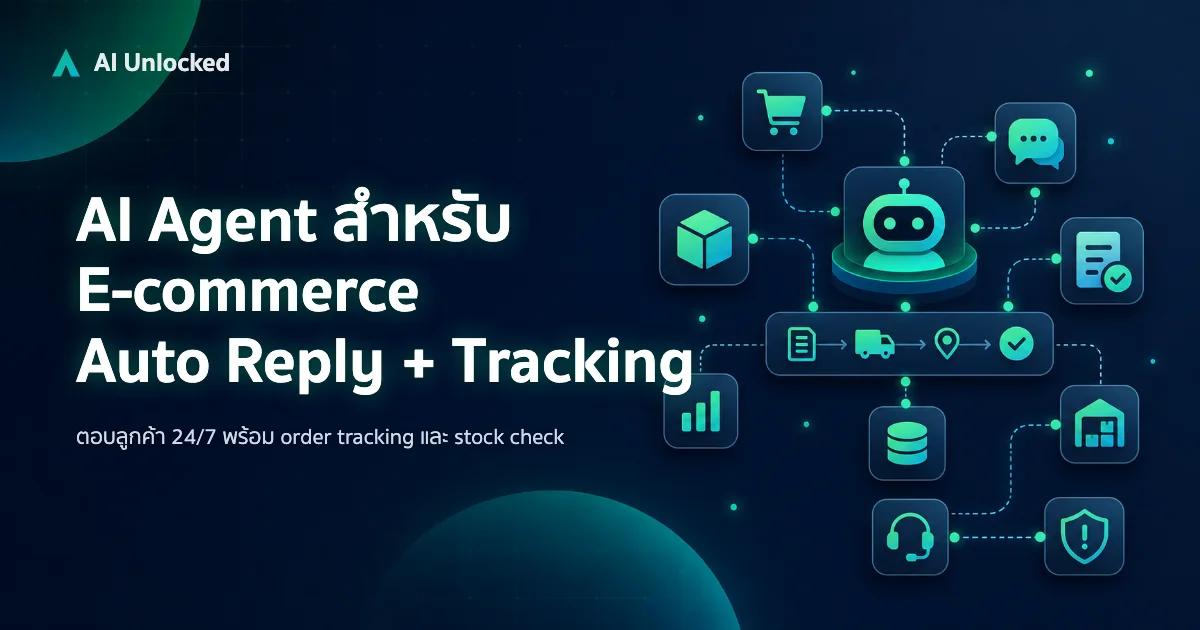
AI Agent สำหรับ E-commerce — Auto Reply + Order Tracking
AI Agent ecommerce ตอบลูกค้า 24/7 บน Shopee, Lazada, Line, FB — ครอบคลุม order tracking, stock check, escalation พร้อม workflow จริง เริ่มต้นได้เลย