
Automate Google Sheets ด้วย n8n: คู่มือฉบับสมบูรณ์
Google Sheets เป็นเครื่องมือที่หลายองค์กรใช้เก็บข้อมูลและจัดการงาน เมื่อรวมกับ n8n คุณสามารถทำให้ทุกอย่างเป็นอัตโนมัติได้ ไม่ว่าจะเป็นการรับ Lead, สร้าง Report, หรือ Sync ข้อมูลระหว่างระบบ
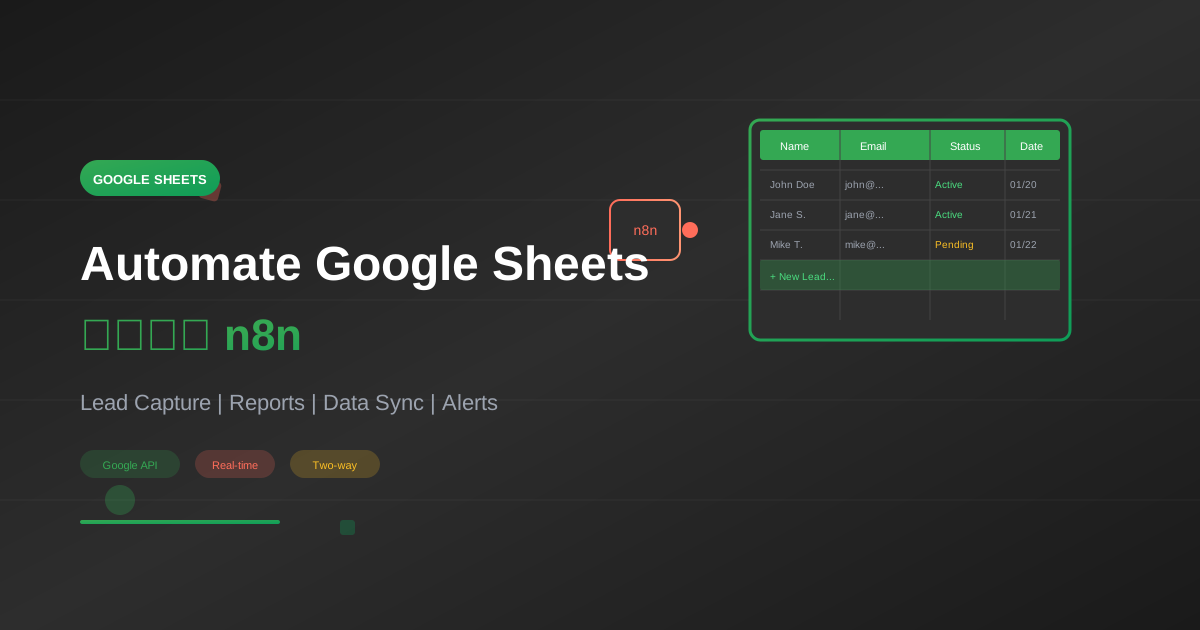
Google Sheets เป็นเครื่องมือที่หลายองค์กรใช้เก็บข้อมูลและจัดการงาน เมื่อรวมกับ n8n คุณสามารถทำให้ทุกอย่างเป็นอัตโนมัติได้ ไม่ว่าจะเป็นการรับ Lead, สร้าง Report, หรือ Sync ข้อมูลระหว่างระบบ
สารบัญ
- การตั้งค่า Google Sheets Credentials
- Operations พื้นฐาน
- Workflow: Lead Capture
- Workflow: Daily Report
- Workflow: Data Sync
- Workflow: Inventory Alert
- Advanced Techniques
- Best Practices
การตั้งค่า Credentials
วิธีที่ 1: OAuth2 (แนะนำ)
ขั้นตอนที่ 1: สร้าง Google Cloud Project
- ไปที่ console.cloud.google.com
- สร้าง Project ใหม่
- เปิดใช้ Google Sheets API
- APIs & Services → Enable APIs
- ค้นหา "Google Sheets API"
- คลิก Enable
ขั้นตอนที่ 2: สร้าง OAuth Credentials
- APIs & Services → Credentials
- Create Credentials → OAuth Client ID
- Application type: Web application
- Authorized redirect URIs: เพิ่ม URL จาก n8n
{
  "redirect_uri_format": "https://your-n8n.com/rest/oauth2-credential/callback"
}
ขั้นตอนที่ 3: เพิ่มใน n8n
- Credentials → Add Credential
- ค้นหา "Google Sheets OAuth2 API"
- ใส่ Client ID และ Client Secret
- คลิก Sign in with Google
วิธีที่ 2: Service Account
สำหรับการใช้งานที่ไม่ต้องการ User Interaction
{
  "service_account_setup": {
    "step_1": "สร้าง Service Account ใน Google Cloud",
    "step_2": "ดาวน์โหลด JSON key",
    "step_3": "Share Sheet กับ Service Account email",
    "step_4": "ใส่ JSON key ใน n8n Credentials"
  }
}
Operations พื้นฐาน
Google Sheets Node Operations
| Operation | Description |
|---|---|
| Append | เพิ่มแถวใหม่ |
| Clear | ล้างข้อมูลใน Range |
| Create | สร้าง Spreadsheet ใหม่ |
| Delete | ลบแถว |
| Read | อ่านข้อมูล |
| Update | อัปเดตแถวที่มีอยู่ |
| Get All | ดึงข้อมูลทั้งหมด |
| Lookup | ค้นหาแถวตามเงื่อนไข |
ตัวอย่าง: Append Row
{
  "parameters": {
    "operation": "append",
    "documentId": "your-spreadsheet-id",
    "sheetName": "Sheet1",
    "columns": {
      "mappingMode": "defineBelow",
      "value": {
        "Name": "={{ $json.name }}",
        "Email": "={{ $json.email }}",
        "Date": "={{ new Date().toLocaleDateString('th-TH') }}"
      }
    }
  }
}
ตัวอย่าง: Read Rows
{
  "parameters": {
    "operation": "read",
    "documentId": "your-spreadsheet-id",
    "sheetName": "Sheet1",
    "range": "A:D",
    "options": {
      "rawData": false
    }
  }
}
Workflow 1: Lead Capture
สถานการณ์
เมื่อมีคนกรอกฟอร์มบนเว็บไซต์ → บันทึกลง Google Sheets → แจ้งเตือนทีมขาย
Workflow Structure
Webhook → Validate → Google Sheets → Slack → Response
JSON Workflow
{
  "name": "Lead Capture to Sheets",
  "nodes": [
    {
      "parameters": {
        "httpMethod": "POST",
        "path": "lead-form",
        "responseMode": "responseNode"
      },
      "name": "Form Webhook",
      "type": "n8n-nodes-base.webhook",
      "position": [250, 300]
    },
    {
      "parameters": {
        "conditions": {
          "string": [
            {
              "value1": "={{ $json.email }}",
              "operation": "isNotEmpty"
            },
            {
              "value1": "={{ $json.name }}",
              "operation": "isNotEmpty"
            }
          ]
        }
      },
      "name": "Validate Data",
      "type": "n8n-nodes-base.if",
      "position": [450, 300]
    },
    {
      "parameters": {
        "operation": "append",
        "documentId": "your-sheet-id",
        "sheetName": "Leads",
        "columns": {
          "mappingMode": "defineBelow",
          "value": {
            "Name": "={{ $json.name }}",
            "Email": "={{ $json.email }}",
            "Phone": "={{ $json.phone || 'N/A' }}",
            "Company": "={{ $json.company || 'N/A' }}",
            "Source": "={{ $json.source || 'Website' }}",
            "Date": "={{ new Date().toISOString() }}",
            "Status": "New"
          }
        }
      },
      "name": "Save to Sheets",
      "type": "n8n-nodes-base.googleSheets",
      "position": [650, 200]
    },
    {
      "parameters": {
        "channel": "#sales-leads",
        "text": "=*New Lead!*\n\nName: {{ $json.name }}\nEmail: {{ $json.email }}\nCompany: {{ $json.company || 'N/A' }}\n\n<https://docs.google.com/spreadsheets/d/your-sheet-id|View in Sheets>",
        "additionalFields": {
          "parse_mode": "Markdown"
        }
      },
      "name": "Notify Slack",
      "type": "n8n-nodes-base.slack",
      "position": [850, 200]
    },
    {
      "parameters": {
        "respondWith": "json",
        "responseBody": "={{ JSON.stringify({ success: true, message: 'Thank you for your submission!' }) }}"
      },
      "name": "Success Response",
      "type": "n8n-nodes-base.respondToWebhook",
      "position": [1050, 200]
    },
    {
      "parameters": {
        "respondWith": "json",
        "responseBody": "={{ JSON.stringify({ success: false, message: 'Please fill in required fields' }) }}",
        "options": {
          "responseCode": 400
        }
      },
      "name": "Error Response",
      "type": "n8n-nodes-base.respondToWebhook",
      "position": [650, 400]
    }
  ],
  "connections": {
    "Form Webhook": {
      "main": [[{"node": "Validate Data"}]]
    },
    "Validate Data": {
      "main": [
        [{"node": "Save to Sheets"}],
        [{"node": "Error Response"}]
      ]
    },
    "Save to Sheets": {
      "main": [[{"node": "Notify Slack"}]]
    },
    "Notify Slack": {
      "main": [[{"node": "Success Response"}]]
    }
  }
}
ทดสอบ Workflow
curl -X POST \
  http://localhost:5678/webhook/lead-form \
  -H "Content-Type: application/json" \
  -d '{
    "name": "John Doe",
    "email": "[email protected]",
    "phone": "0891234567",
    "company": "ABC Corp",
    "source": "Google Ads"
  }'
อ่านเพิ่มเติมเกี่ยวกับ Webhooks: Webhook Triggers ใน n8n
Workflow 2: Daily Report
สถานการณ์
ทุกวันเช้า 8:00 น. → ดึงข้อมูลจาก Sheet → สรุปด้วย AI → ส่งรายงานไป Email
JSON Workflow
{
  "name": "Daily Sales Report",
  "nodes": [
    {
      "parameters": {
        "rule": {
          "interval": [
            {
              "field": "cronExpression",
              "expression": "0 8 * * 1-5"
            }
          ]
        }
      },
      "name": "Every Weekday 8AM",
      "type": "n8n-nodes-base.scheduleTrigger",
      "position": [250, 300]
    },
    {
      "parameters": {
        "operation": "read",
        "documentId": "your-sheet-id",
        "sheetName": "Sales",
        "range": "A:F",
        "options": {
          "rawData": false
        }
      },
      "name": "Get Sales Data",
      "type": "n8n-nodes-base.googleSheets",
      "position": [450, 300]
    },
    {
      "parameters": {
        "jsCode": "const data = items;\nconst today = new Date();\nconst yesterday = new Date(today);\nyesterday.setDate(yesterday.getDate() - 1);\nconst yesterdayStr = yesterday.toISOString().split('T')[0];\n\nconst yesterdaySales = data.filter(item => \n  item.json.Date && item.json.Date.startsWith(yesterdayStr)\n);\n\nconst totalSales = yesterdaySales.reduce((sum, item) => \n  sum + (parseFloat(item.json.Amount) || 0), 0\n);\n\nconst orderCount = yesterdaySales.length;\n\nreturn [{\n  json: {\n    date: yesterdayStr,\n    totalSales: totalSales.toFixed(2),\n    orderCount: orderCount,\n    averageOrder: orderCount > 0 ? (totalSales / orderCount).toFixed(2) : 0,\n    rawData: yesterdaySales.map(s => s.json)\n  }\n}];"
      },
      "name": "Calculate Summary",
      "type": "n8n-nodes-base.code",
      "position": [650, 300]
    },
    {
      "parameters": {
        "model": "gpt-4-turbo-preview",
        "messages": {
          "values": [
            {
              "role": "user",
              "content": "=สร้างสรุปรายงานยอดขายประจำวัน:\n\nวันที่: {{ $json.date }}\nยอดขายรวม: {{ $json.totalSales }} บาท\nจำนวนออเดอร์: {{ $json.orderCount }}\nออเดอร์เฉลี่ย: {{ $json.averageOrder }} บาท\n\nสรุปเป็นภาษาไทย กระชับ 2-3 ประโยค พร้อมข้อเสนอแนะ"
            }
          ]
        }
      },
      "name": "AI Summary",
      "type": "n8n-nodes-base.openAi",
      "position": [850, 300]
    },
    {
      "parameters": {
        "fromEmail": "[email protected]",
        "toEmail": "[email protected]",
        "subject": "=Daily Sales Report - {{ $node['Calculate Summary'].json.date }}",
        "html": "=<h2>รายงานยอดขายประจำวัน</h2>\n<p><strong>วันที่:</strong> {{ $node['Calculate Summary'].json.date }}</p>\n<p><strong>ยอดขายรวม:</strong> {{ $node['Calculate Summary'].json.totalSales }} บาท</p>\n<p><strong>จำนวนออเดอร์:</strong> {{ $node['Calculate Summary'].json.orderCount }}</p>\n<p><strong>ออเดอร์เฉลี่ย:</strong> {{ $node['Calculate Summary'].json.averageOrder }} บาท</p>\n<hr>\n<h3>AI Summary:</h3>\n<p>{{ $json.message.content }}</p>"
      },
      "name": "Send Email",
      "type": "n8n-nodes-base.emailSend",
      "position": [1050, 300]
    }
  ],
  "connections": {
    "Every Weekday 8AM": {
      "main": [[{"node": "Get Sales Data"}]]
    },
    "Get Sales Data": {
      "main": [[{"node": "Calculate Summary"}]]
    },
    "Calculate Summary": {
      "main": [[{"node": "AI Summary"}]]
    },
    "AI Summary": {
      "main": [[{"node": "Send Email"}]]
    }
  }
}
เรียนรู้เพิ่มเติมเกี่ยวกับ AI: เชื่อมต่อ n8n กับ AI
Workflow 3: Data Sync
สถานการณ์
Sync ข้อมูลระหว่าง Google Sheets กับ CRM
Two-Way Sync Strategy
{
  "sync_strategy": {
    "sheets_to_crm": "ทุก 15 นาที ดึง New/Updated rows จาก Sheets → สร้าง/อัปเดต CRM",
    "crm_to_sheets": "ทุก 15 นาที ดึง New/Updated records จาก CRM → อัปเดต Sheets",
    "conflict_resolution": "ใช้ Last Modified timestamp"
  }
}
JSON Workflow (Sheets to CRM)
{
  "name": "Sheets to CRM Sync",
  "nodes": [
    {
      "parameters": {
        "rule": {
          "interval": [{"field": "minutes", "minutesInterval": 15}]
        }
      },
      "name": "Every 15 Minutes",
      "type": "n8n-nodes-base.scheduleTrigger",
      "position": [250, 300]
    },
    {
      "parameters": {
        "operation": "read",
        "documentId": "your-sheet-id",
        "sheetName": "Contacts",
        "options": {}
      },
      "name": "Read Sheets",
      "type": "n8n-nodes-base.googleSheets",
      "position": [450, 300]
    },
    {
      "parameters": {
        "conditions": {
          "string": [
            {
              "value1": "={{ $json.SyncStatus }}",
              "operation": "notEqual",
              "value2": "Synced"
            }
          ]
        }
      },
      "name": "Filter Unsynced",
      "type": "n8n-nodes-base.if",
      "position": [650, 300]
    },
    {
      "parameters": {
        "resource": "contact",
        "operation": "upsert",
        "email": "={{ $json.Email }}",
        "additionalFields": {
          "firstName": "={{ $json.FirstName }}",
          "lastName": "={{ $json.LastName }}",
          "phone": "={{ $json.Phone }}"
        }
      },
      "name": "Upsert to CRM",
      "type": "n8n-nodes-base.hubspot",
      "position": [850, 200]
    },
    {
      "parameters": {
        "operation": "update",
        "documentId": "your-sheet-id",
        "sheetName": "Contacts",
        "columns": {
          "mappingMode": "defineBelow",
          "value": {
            "SyncStatus": "Synced",
            "LastSync": "={{ new Date().toISOString() }}"
          }
        },
        "options": {
          "lookupColumn": "Email",
          "lookupValue": "={{ $json.Email }}"
        }
      },
      "name": "Update Sync Status",
      "type": "n8n-nodes-base.googleSheets",
      "position": [1050, 200]
    }
  ]
}
Workflow 4: Inventory Alert
สถานการณ์
ตรวจสอบ Stock ใน Sheet → แจ้งเตือนถ้าต่ำกว่า Threshold
JSON Workflow
{
  "name": "Low Stock Alert",
  "nodes": [
    {
      "parameters": {
        "rule": {
          "interval": [{"field": "hours", "hoursInterval": 2}]
        }
      },
      "name": "Every 2 Hours",
      "type": "n8n-nodes-base.scheduleTrigger",
      "position": [250, 300]
    },
    {
      "parameters": {
        "operation": "read",
        "documentId": "your-inventory-sheet",
        "sheetName": "Inventory"
      },
      "name": "Get Inventory",
      "type": "n8n-nodes-base.googleSheets",
      "position": [450, 300]
    },
    {
      "parameters": {
        "conditions": {
          "number": [
            {
              "value1": "={{ parseInt($json.CurrentStock) }}",
              "operation": "smallerEqual",
              "value2": "={{ parseInt($json.MinStock) }}"
            }
          ]
        }
      },
      "name": "Low Stock?",
      "type": "n8n-nodes-base.if",
      "position": [650, 300]
    },
    {
      "parameters": {
        "channel": "#inventory-alerts",
        "text": "=*Low Stock Alert!*\n\nProduct: {{ $json.ProductName }}\nSKU: {{ $json.SKU }}\nCurrent Stock: {{ $json.CurrentStock }}\nMin Stock: {{ $json.MinStock }}\n\nPlease reorder immediately!",
        "additionalFields": {
          "attachments": [
            {
              "color": "#ff0000"
            }
          ]
        }
      },
      "name": "Alert Slack",
      "type": "n8n-nodes-base.slack",
      "position": [850, 200]
    }
  ]
}
Advanced Techniques
1. Batch Operations
เมื่อต้องอัปเดตหลายแถว ใช้ Batch เพื่อประหยัด API Calls:
{
  "parameters": {
    "operation": "update",
    "documentId": "sheet-id",
    "sheetName": "Data",
    "options": {
      "valueInputMode": "RAW"
    },
    "dataMode": "autoMapInputData"
  }
}
2. Dynamic Sheet Selection
// ใช้ Expression เลือก Sheet ตามเดือน
const month = new Date().toLocaleString('default', { month: 'long' });
return `Sales_${month}`;
3. Lookup และ Update
{
  "parameters": {
    "operation": "update",
    "options": {
      "lookupColumn": "ID",
      "lookupValue": "={{ $json.recordId }}"
    }
  }
}
4. การจัดการ Large Data
{
  "large_data_tips": {
    "use_ranges": "อ่านเฉพาะ Range ที่ต้องการ",
    "pagination": "แบ่งอ่านทีละ batch",
    "filter_early": "กรองข้อมูลก่อน process",
    "use_formulas": "ใช้ Sheet Formulas ช่วยคำนวณ"
  }
}
Best Practices
1. Sheet Structure
{
  "recommended_columns": [
    "ID (unique identifier)",
    "CreatedAt",
    "UpdatedAt",
    "SyncStatus",
    "Notes"
  ]
}
2. Error Handling
{
  "error_scenarios": {
    "sheet_not_found": "ตรวจสอบ Sheet ID และ Name",
    "permission_denied": "ตรวจสอบ Share settings",
    "rate_limit": "เพิ่ม delay ระหว่าง requests",
    "invalid_data": "Validate ก่อน append"
  }
}
อ่านเพิ่มเติม: จัดการ Error ใน n8n
3. Performance Tips
- ใช้
rangeจำกัดข้อมูลที่อ่าน - Cache ข้อมูลที่ไม่เปลี่ยนบ่อย
- ใช้ Batch operations เมื่อเป็นไปได้
- หลีกเลี่ยงการอ่าน Sheet บ่อยเกินไป
4. Security
{
  "security_tips": [
    "ใช้ Service Account สำหรับ Production",
    "จำกัด Scope ของ OAuth",
    "อย่าเก็บ Sensitive data ใน Sheets",
    "ตรวจสอบ Share settings เป็นประจำ"
  ]
}
Troubleshooting
ปัญหาที่พบบ่อย
1. "Spreadsheet not found"
{
  "solutions": [
    "ตรวจสอบ Spreadsheet ID ถูกต้อง",
    "ตรวจสอบ Sheet ถูก Share กับ Account",
    "ลอง Re-authorize Credentials"
  ]
}
2. "Request rate limit exceeded"
{
  "solutions": [
    "เพิ่ม Wait Node ระหว่าง requests",
    "ลดความถี่ของ Schedule",
    "ใช้ Batch operations"
  ]
}
3. "Data format errors"
{
  "solutions": [
    "ตรวจสอบ Column names ตรงกับ Sheet",
    "ใช้ rawData: false สำหรับ formatted data",
    "Validate data ก่อน append"
  ]
}
สรุป
Google Sheets + n8n สามารถทำได้:
- Lead Management: รับและจัดการ Leads อัตโนมัติ
- Reporting: สร้างรายงานและส่งทุกวัน
- Data Sync: ซิงค์ข้อมูลระหว่างระบบ
- Alerts: แจ้งเตือนเมื่อเกิดเงื่อนไข
ขั้นตอนถัดไป
- Webhooks: Webhook Triggers ใน n8n
- Telegram Bot: สร้าง Telegram Bot
- Error Handling: จัดการ Error
- Advanced: 5 Advanced Workflows
พร้อม Automate Google Sheets แล้วหรือยัง?
ติดตามบทความเพิ่มเติมและรับคำปรึกษาที่ AI Unlocked
เขียนโดย
AI Unlocked Team
สถาบันสอน AI และ Vibe Coding — เชียงใหม่และออนไลน์
AI Unlocked สอน AI และ Vibe Coding มากว่า 15 ปี ผู้เรียนกว่า 1,500 คน โฟกัสลงมือทำจริงด้วย Claude Code, n8n และ AI Agent
บทความในหัวข้อเดียวกัน
สร้าง AI Agent — Complete Guide ภาษาไทย 2026
เรียนรู้สร้าง AI Agent ตั้งแต่ศูนย์ ครอบคลุม Claude Agent SDK, OpenAI Agents, LangGraph, n8n พร้อม Use Case ธุรกิจไทย — เริ่มต้นได้วันนี้
AI Agent + Voice — สอนสร้าง Voice Assistant ภาษาไทย
สอนสร้าง AI Voice Agent ภาษาไทยตั้งแต่ STT → LLM → TTS พร้อม tutorial Python และ use case จริง — เริ่มต้นได้วันนี้ที่ aiunlock.co

AI Agent สำหรับ E-commerce — Auto Reply + Order Tracking
AI Agent ecommerce ตอบลูกค้า 24/7 บน Shopee, Lazada, Line, FB — ครอบคลุม order tracking, stock check, escalation พร้อม workflow จริง เริ่มต้นได้เลย